 AmbyPen
ปากกาและไฮไลท์Pen & highlighter
เส้นลื่นตามแรงกดปากกา stylus ไฮไลท์แบบโปร่งแสง กด Shift ค้างแล้วลากได้เส้นตรงเป๊ะ
Smooth, pressure-sensitive ink and a translucent highlighter. Hold Shift for a perfectly straight line.
เขียน ไฮไลท์ ใส่ลูกศรและข้อความทับทุกโปรแกรม เว็บไซต์ หรือวิดีโอ พร้อมสปอตไลต์ แว่นขยาย จับภาพ และอัดหน้าจอ เหมาะกับการสอน พรีเซนต์ และประชุมออนไลน์
Write, highlight, add arrows and text over any app, website or video — with a spotlight, magnifier, screenshots and screen recording. Made for teaching, presenting and online meetings.
เรียบง่ายพอจะใช้ได้ทันที แต่ครบพอสำหรับคลาสเรียนหรือการพรีเซนต์ทั้งวัน
Simple enough to use right away, complete enough for a full day of teaching or presenting.
เส้นลื่นตามแรงกดปากกา stylus ไฮไลท์แบบโปร่งแสง กด Shift ค้างแล้วลากได้เส้นตรงเป๊ะ
Smooth, pressure-sensitive ink and a translucent highlighter. Hold Shift for a perfectly straight line.
เส้นตรง ลูกศร สี่เหลี่ยม วงรี และกล่องข้อความ ลากเพื่อย้าย คลิกเพื่อแก้ได้ภายหลัง
Lines, arrows, rectangles, ellipses and text labels you can drag to move and click to edit.
กด Esc กลับไปใช้โปรแกรมด้านหลังได้ตามปกติ โดยภาพวาดยังค้างอยู่บนจอ
Press Esc to keep using the apps underneath while your drawings stay on screen.
ลากเลือกพื้นที่หรือคลิกเพื่อจับทั้งจอ ติดภาพวาดไปด้วย คัดลอกไปคลิปบอร์ดอัตโนมัติ เลือกได้ทั้ง PNG และ JPG
Drag a region or click for the full screen — annotations included, copied to the clipboard, as PNG or JPG.
บันทึกเป็น MP4 (H.264) ติดภาพวาดและเคอร์เซอร์ แต่ไม่ติดแถบเครื่องมือ ใช้การ์ดจอช่วยเข้ารหัสอัตโนมัติ
Records to MP4 (H.264) with your ink and cursor, without the toolbar. Hardware-accelerated where available.
เรียกใช้ได้จากทุกโปรแกรม ตั้งปุ่มเองหรือปิดทีละตัวได้ โดยระบบจำปุ่มที่ตั้งไว้
Work from any app. Change any key or switch it off without losing it.
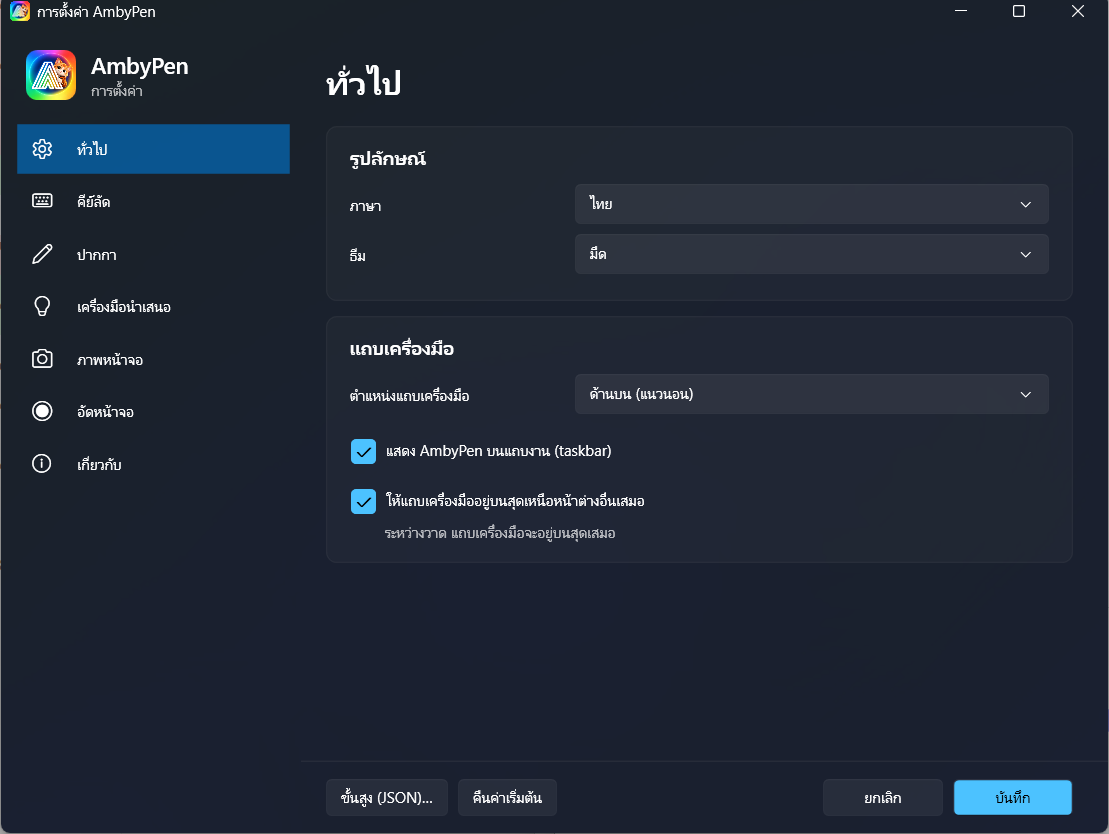
แนวตั้งหรือแนวนอน ซ้าย ขวา บน ล่าง อยู่บนสุดเสมอหรือไม่ก็ได้ มีปุ่มบน taskbar
Vertical or horizontal on any screen edge, optionally always on top, with a taskbar button.
เปลี่ยนตาม Windows อัตโนมัติ หรือเลือกเอง ทั้งแอปและตัวติดตั้งรองรับภาษาไทยเต็มรูปแบบ
Follows Windows or your choice. The app and installer speak English and Thai.
หรือกดปุ่มปากกาบนแถบเครื่องมือ จากโปรแกรมไหนก็ได้
Or click the pen on the toolbar — from any app.
เปลี่ยนสีด้วยปุ่ม 1–9 เลือกเครื่องมือด้วย P H A T และย้อนด้วย Ctrl + Z
Colors on 1–9, tools on P H A T, undo with Ctrl + Z.
ภาพวาดยังอยู่ จับภาพหรืออัดวิดีโอเก็บไว้ หรือกด Ctrl + Alt + C เพื่อล้าง
Your notes stay put — capture or record them, or clear with Ctrl + Alt + C.
เวอร์ชันล่าสุด · ดูว่ามีอะไรใหม่
Latest version · See what's new
ติดตั้งง่าย อัปเดตอัตโนมัติ และผ่านการตรวจสอบโดย Microsoft
One-click install, automatic updates, verified by Microsoft.
รับจาก Microsoft StoreGet it from Microsoft Storeเร็วๆ นี้Coming soonไฟล์ .exe ติดตั้งเฉพาะผู้ใช้ ไม่ต้องใช้สิทธิ์ Admin ไม่ต้องลง .NET เพิ่ม
A per-user .exe — no admin rights, no extra runtimes to install.
ดาวน์โหลดDownload AmbyPen-Setup-.exeเร็วๆ นี้Coming soonฟรีจริง ไม่มีโฆษณา ไม่มีการซื้อในแอป และไม่ต้องสมัครสมาชิก AmbyPen พัฒนาและแจกโดย Ambside
Yes — no ads, no in-app purchases, no sign-up. AmbyPen is made and given away by Ambside.
ไม่เลย ทุกอย่างบันทึกอยู่ในเครื่องของคุณเท่านั้น ตัวแอป AmbyPen ไม่มีระบบเก็บข้อมูลหรือติดตามการใช้งาน อ่านเพิ่มได้ที่ นโยบายความเป็นส่วนตัว
No. Everything is saved only on your computer; the AmbyPen app has no analytics or tracking. See the privacy policy.
ตัวติดตั้งแบบไฟล์ .exe ยังไม่มีลายเซ็นดิจิทัล กด More info → Run anyway ได้ หรือติดตั้งจาก Microsoft Store ซึ่ง Microsoft รับรองให้แล้วจะไม่ขึ้นเตือนนี้
The .exe installer isn't code-signed yet. Choose More info → Run anyway, or install from the Microsoft Store, which Microsoft signs for us.
เครื่องของคุณเปิดการป้องกัน ransomware ไว้ ให้อนุญาต AmbyPen ใน Windows Security → Ransomware protection → Allow an app หรือเปลี่ยนโฟลเดอร์บันทึกในการตั้งค่าของ AmbyPen
Your PC has ransomware protection on. Allow AmbyPen in Windows Security → Ransomware protection → Allow an app, or pick another save folder in AmbyPen's settings.
ได้ วาดได้ทุกจอ จับภาพได้ทุกจอ และกระดานขาว/ดำจะขึ้นเฉพาะจอที่คุณเลือก
Yes — draw and capture across all monitors; the whiteboard appears on the one you choose.